
Introduction
Beginner‑friendly, practical guide to running powerful AI models completely offline using LM Studio — no cloud, no coding required.
For years, accessing powerful AI tools like ChatGPT felt limited by internet connectivity and data privacy concerns. But now, thanks to tools like LM Studio, you can run sophisticated Large Language Models (LLMs) directly on your own PC! This guide will walk you through everything you need to know about installing and using LM Studio to unlock the potential of local AI.
What is LM Studio?
LM Studio is a free application that allows you to download, run, and experiment with various LLMs – including models like Llama 3, Mistral, Gemma, and many more – entirely offline on your computer. It’s incredibly user-friendly, making AI accessible to everyone, regardless of technical expertise. It's a game changer for privacy, speed (once downloaded), and control over your data.
Why use LM Studio for local AI?
Why you need LM Studio & local AI:
-
Privacy: Your conversations and data stay entirely on your machine – no sending sensitive information to third-party servers.
-
Offline AI: Once the model is downloaded, you don’t rely on internet connectivity or server availability. Responses are instant!
-
Local API: Serve local models on OpenAI-like endpoints, locally and on the network.
-
Cost Savings: While downloading large models takes time and storage space, it eliminates ongoing subscription fees associated with cloud-based AI services.
-
Chat Interface: Use a simple and flexible chat interface.
-
One‑click model downloads (GGUF): Download and run local LLMs like gpt-oss or Llama, Qwen.
System Requirements
LM Studio generally supports Apple Silicon Macs, x64/ARM64 Windows PCs, and x64 Linux PCs.
Minimum (small models)
- 8 GB RAM
- Modern 64‑bit CPU
- SSD recommended
Recommended
- 16 GB RAM: LLMs can consume a lot of RAM. At least 16GB of RAM is recommended.
- iGPU (Intel / AMD) or NVIDIA GPU: at least 4GB of dedicated VRAM is recommended.
- Latest graphics drivers
Installing LM Studio
-
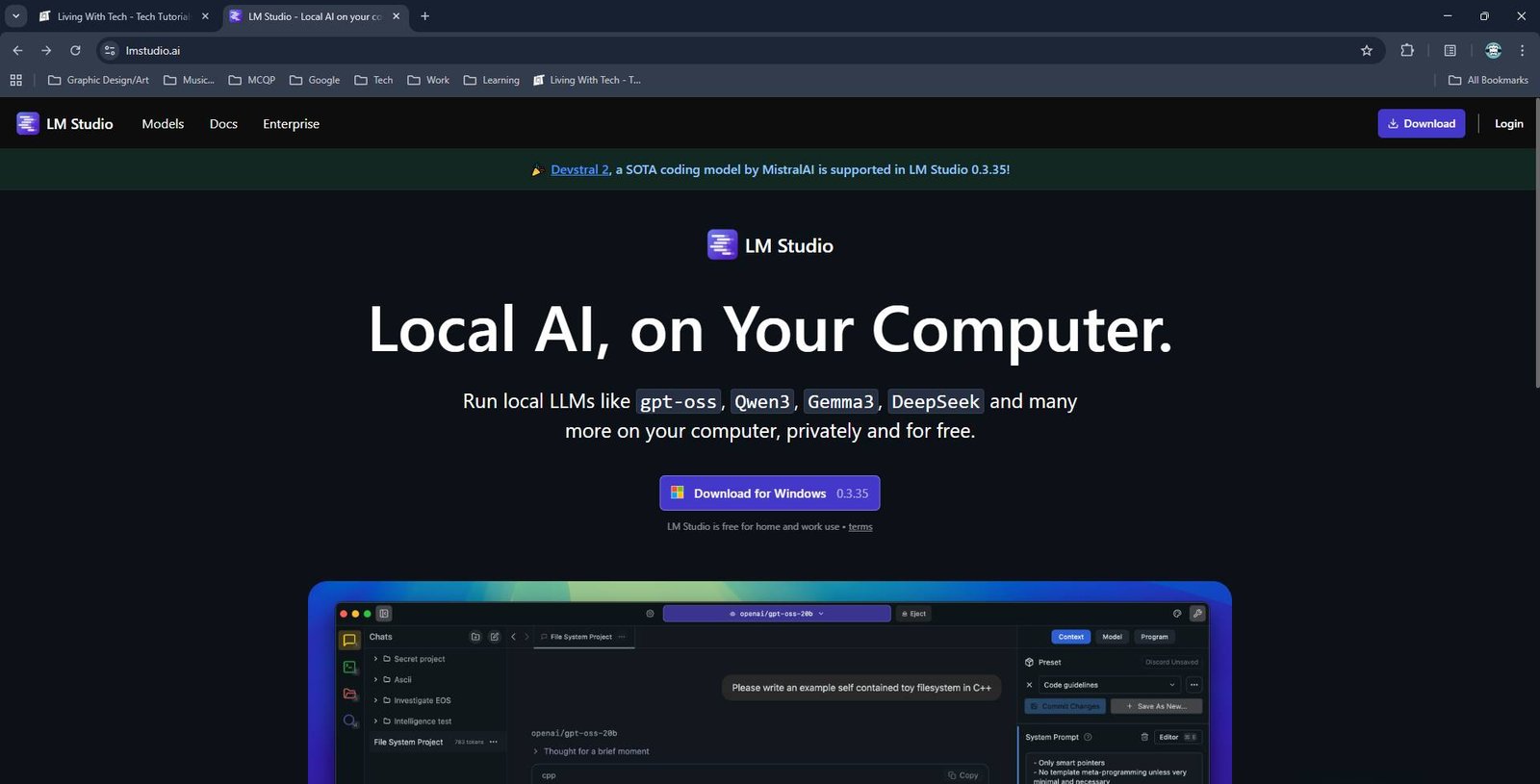
Download: Head over to lmstudio.ai and download the installer for your operating system (Windows, macOS, or Linux).
-
Installation: Follow the on-screen instructions to install LM Studio. It’s a straightforward process – just accept the terms and conditions.
Launch: Once installed, launch LM Studio.
Navigating the LM Studio UI
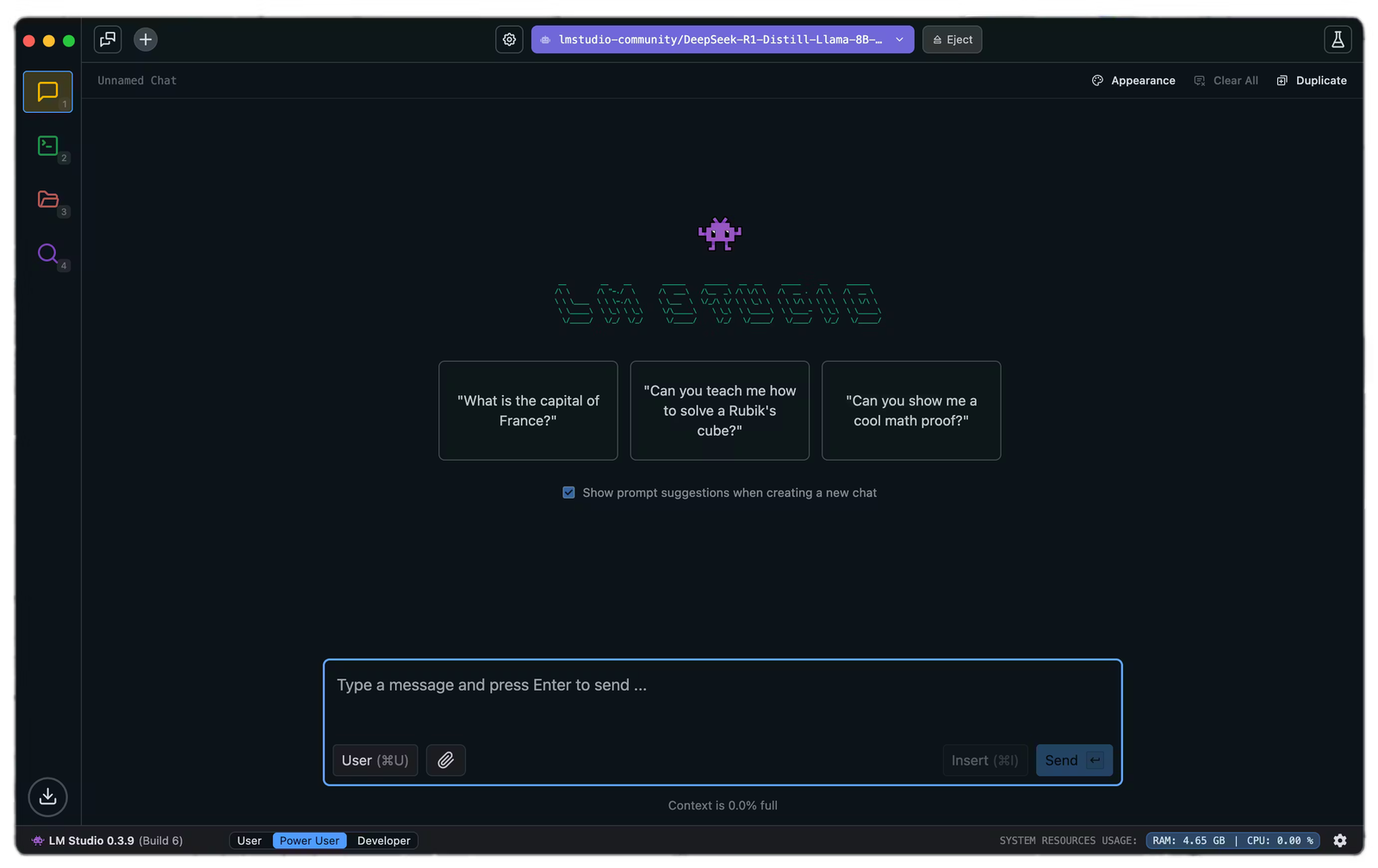
The LM Studio interface is surprisingly intuitive. It has three user modes - User, Power User and Developer.
-
Chat Tab: This is your primary interaction point with the model. Here you'll type in prompts and receive responses. From the Center-top loader option, you can load a model into memory.
-
Developer Tab: This is where LM Studio becomes powerful for developers. Features include: Local OpenAI‑compatible API server, Port and model settings, Developer Logs, etc.
-
My Models Tab: This section is for model management. Here you can: Browse available models, View model size, quantization, and context length and Delete models you no longer need.
-
Discover Tab: This is where you can search and download new models from Hugging Face
-
Settings: Global app preferences live here.
Note: LM Studio also comes with "lms" CLI (mainly for developer use).
Key Things To Know
- Quantization: A technique used to reduce the size of an LLM, leading to faster inference (generating text) and lower memory requirements without significantly impacting quality. It involves representing the model's parameters with fewer bits, like 8-bit or even 4-bit, making it more suitable for limited hardware.
- Tokens: The Subword units of text processed by the model, which determine how much text you can input and how long responses can be.
- GGUF: A model file format designed for efficient local inference, allowing LM Studio to run models on CPU, GPU, or integrated graphics.
- Context Length: The maximum number of tokens a model can attend to in a single input or conversation window.
- GPU Offload: A feature that moves part of the model computation to the GPU, improving speed and responsiveness.
Need a Video Tutorial?
Watch my youtube short on how to install and use LM Studio:
Note: I used LM Studio itself to help me write this article.😉💯
Thanks for Reading!
I'll be posting more tech tutorials and reviews regularly. Thank you for being part of this journey! 🙌
Join Today! Sign Up for Free Here.
Comment Below for any queries or suggestions. 📩